Create an AWS User credentials secret to store AWS IAM credentials and use them to generate temporary credentials for accessing AWS. This page provides information about the following topics:
Prerequisites
Before you begin, make sure you have completed the following tasks:
- Created a box in your Cryptographic Security Platform Vault for Secrets. For more information, see: Creating a Box.
- Generated the following information in the AWS Management Console:
- an active AWS IAM access key
- an active access key ID
For information about generating an AWS IAM access key and an access key ID, see the AWS documentation.
- Obtained the following required permissions:
iam:GetUseriam:CreateAccessKeyiam:UpdateAccessKeyiam:DeleteAccessKeyiam:ListAccessKeysiam:GetRole(required if a role is used)sts:AssumeRole(required if a role is used)If you do not have the required permissions, contact your AWS administrator.
- Obtained no more than one access key.
CSP Vault creates a new access key before deleting the existing access key. AWS allows a maximum of two access keys per IAM user.
- Confirmed that the access key is not being used by an application that requires continued access to AWS.
CSP Vault rotates the access key when you create the secret. The access key that you provide is deleted from AWS, and any application still using that access key can no longer use it to access AWS.
To create an AWS user credentials secret
From the Cryptographic Security Platform Vault for Secrets webGUI, select Manage > Manage Boxes.
On the Manage Boxes page, select the box where you want to create a secret. The Box page appears.
In the Secrets section, click Create. The Choose a type of secrete to create window appears.
Select AWS User. The Create Secret: AWS User wizard appears.
On the About page, complete the following:
Option
Description
Name
Enter the name to use for the secret.
Description
Enter the optional description for the secret.
Expires
Select one of the following:
Use Box Setting—Accepts the global box value. This is the default.
No Expiration—The secret does not expire.
Specific Date and Time—Allows you to set the specific date and time for the secret to expire.
- Click Continue. The Secret Details page appears.
Complete the following fields:
Option
Description
Access Key ID
Enter the access key ID.
Access Key
Enter the access key.
Assumed Role
Enter the assumed role for this user. This field is optional.
- Click Continue. The Checkout Details page appears.
Complete the following:
Option
Description
Checkout Duration
How long the secret is checked out.
- Use Box Setting—Use the duration set when creating the box. This is the default.
Duration—Enter a duration in days, minutes, or hours. This value will overwrite the box settings.
The minimum is 15 minutes. The maximum is 36 hours when no IAM role is specified, or the IAM role’s Maximum session duration when a role is specified.
Exclusive Checkout
If enabled, then the secret checkout will be exclusive and only one user can check out the secret at a time. Users must wait for the checkout duration to expire or must manually delete the lease to make the secret available for new checkouts.
Use Box Setting—Use the value that was set when creating the box. This is the default.
Yes—If set to Yes, the secrets checkout will be exclusive.
No—If set to No, multiple users can checkout the secret at the same time.
- Click Continue. The Rotation Details appears.
Complete the following:
Option
Description
Rotation Duration
Sets the duration for this secret to be rotated.
Use Box Setting—Use the duration set when creating the box. This is the default.
Duration—Enter a duration in days, minutes, or hours. This value will overwrite the box settings.
The minimum is 15 minutes. The maximum is 36 hours when no IAM role is specified, or the IAM role’s Maximum session duration when a role is specified.
Rotate on Check In
If enabled, the secret will automatically rotate when checked in. This requires that the checkout duration is set.
Use Box Setting—Use the value that was set when creating the box. This is the default.
Yes—If set to Yes, the secret will be rotated when it is checked in.
No—If set to No, the secret will not be rotated when it is checked in.
Force Rotation
If selected, this forces the rotation of all secrets in the box. If Rotation Duration and Force Rotation are both checked, the secret will be rotated even if there are outstanding leases. If Rotate on Check In and Force Rotation are both checked, the secret will rotate when the checkout expires.
Use Box Setting—Use the value that was set when creating the box. This is the default.
Yes—If set to Yes, this forces the secret to rotate.
No—If set to No, the secret will not rotate.
- Click Create. The AWS User credentials secret you created appears in the Secrets section.
When you create the secret, CSP Vault immediately rotates the access key that you provide. The access key is deleted from AWS, and any application still using the access key can no longer use it to access AWS.
To view AWS User credentials secret details
From the Cryptographic Security Platform Vault for Secrets webGUI, select Manage > Manage Boxes.
On the Manage Boxes page, select the box where the AWS User credentials secret is stored. The Box page appears.
In the Secrets section, click the required AWS User credentials secret. The Secret Details page appears.
- Select the Details tab. Details of the AWS User credentials secret appears.
- Select the Versions tab. Versions of the AWS User credentials secret appears.
- Find the the required version and select View Data. The Secret Details <version> page appears, displaying the Access Key ID, Access Key, and Session Token.
- Click Close.
CSP Vault replaces the access key that you provided when creating the secret and deletes the original access key from AWS.
To check out an AWS User credentials secret
Check out an AWS User credentials secret to obtain temporary credentials for accessing AWS without exposing the stored credentials.
From the Cryptographic Security Platform Vault for Secrets webGUI, select Manage > Manage Boxes.
On the Manage Boxes page, select the box where the AWS User credentials secret is stored. The Box page appears.
In the Secrets section, select the required AWS User credentials secret.
- From the Actions drop-down list, select Check Out. The Successfully Checked Out Secret page appears.
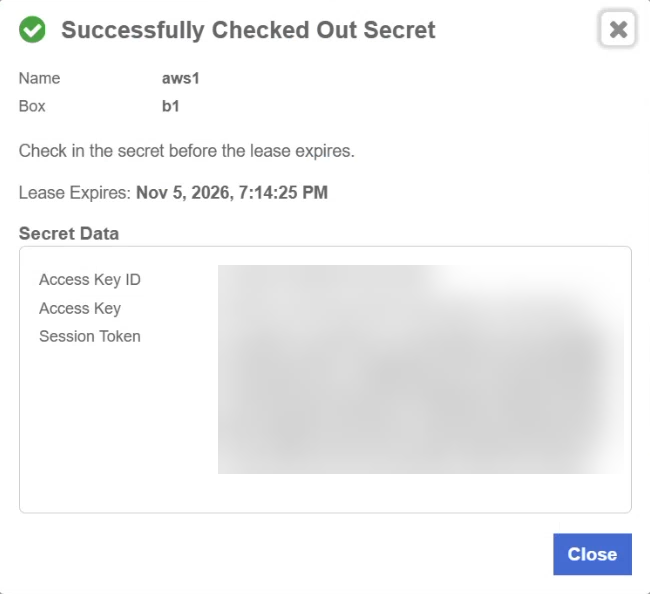
- Click Close.
- In the Secrets section, click the Checked Out tab. A list of the secrets in the box, including the secret name, version, checked out by, checked out time, and expiration date appears.
To delete an AWS User credentials secret
From the Cryptographic Security Platform Vault for Secrets webGUI, select Manage > Manage Boxes.
On the Manage Boxes page, select the box where the AWS User credentials secret is stored. The Box page appears.
In the Secrets section, select the required AWS User credentials secret.
- Select the trashcan icon to delete the AWS User credentials secret. The Delete Secret window appears,

- Select Delete. The Delete Secret Lease page appears.
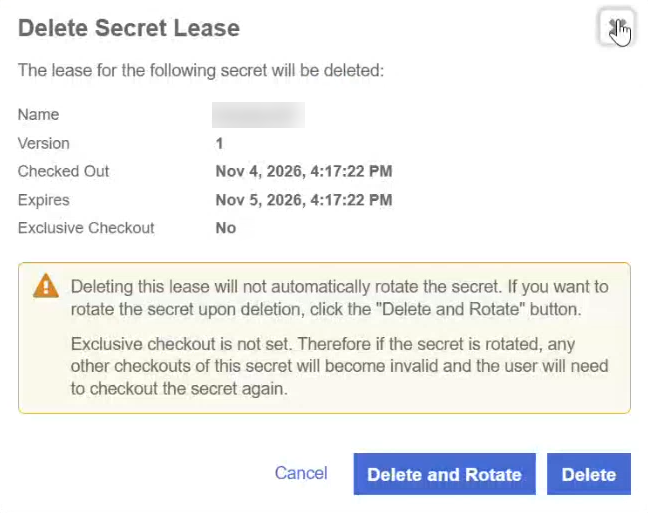
An alternative is to delete the secret from the Checked Out tab:
- In the Secrets section, click the Checked Out tab. A list of the secrets in the box, including the secret name, version, checked out by, checked out time, and expiration date appears.
- Select the secret you want to delete.
- Select Delete Lease. The Delete Secret Lease window appears.
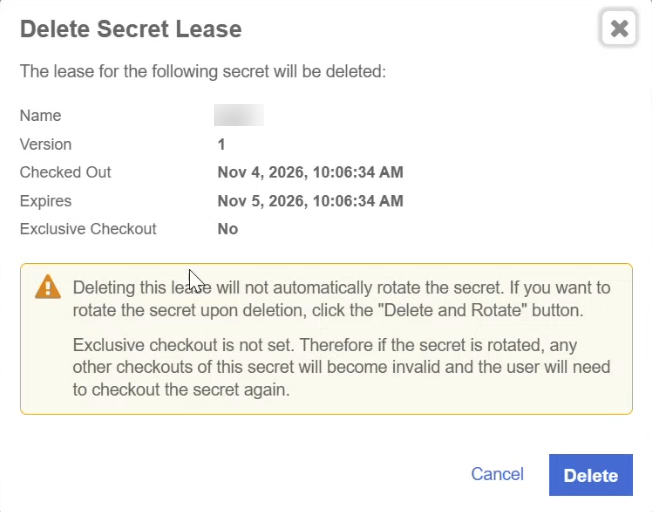
- Select Delete. A "Lease deleted successfully" messages appears.
- Select Delete. A "Lease deleted successfully" messages appears.
To rotate an AWS User credentials secret
Rotate an AWS User credentials secret to replace the existing AWS IAM access key with a new access key and avoid using the same credentials for an extended period.
Rotation creates a new IAM access key, then deactivates and deletes the previous access key. You must have no more than one access key before rotation.
From the Cryptographic Security Platform Vault for Secrets webGUI, select Manage > Manage Boxes.
On the Manage Boxes page, select the box where the AWS User credentials secret is stored. The Box page appears.
In the Secrets section, select the required AWS User credentials secret.
- From the Actions drop-down list, select Rotate Secret. The Rotate Secret window appears.
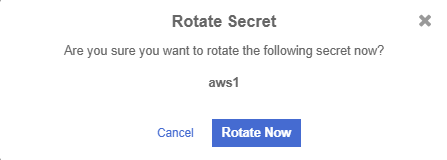
- Select Rotate Now. The "Secret rotation started successfully" message appears.
- In the Secrets section, select the secret that you just rotated.
- Select the Versions tab. Versions of the AWS User credentials secret appears.
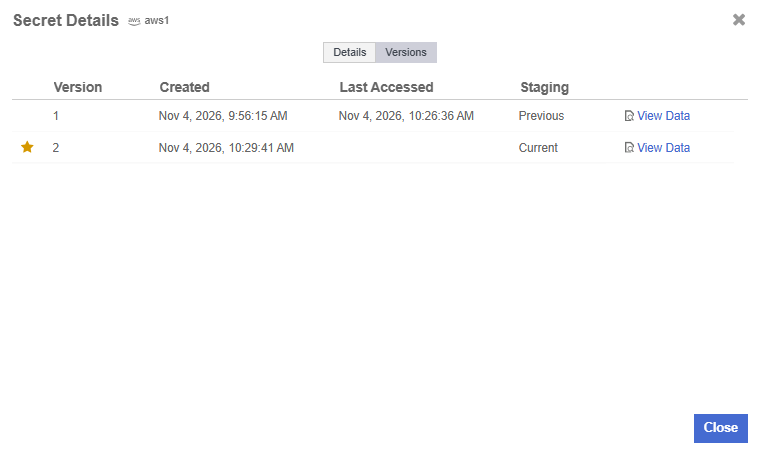
- Click View Data. The Secret Details <version> page appears.
- Click Close.
Troubleshooting
Message | Cause | Suggested action |
|---|---|---|
Maximum AWS access key limit reached for IAM user | The IAM user already has two access keys. | Delete an unused access key in AWS and retry. |
Failed to assume role ... check appropriate policies | The | Configure the required IAM policy or role trust policy. |
Lease duration cannot be empty for AWS User credentials | No lease duration is specified. | Specify a lease duration. |
Lease duration cannot be less than 900 seconds | The lease duration is less than 15 minutes. | Set the lease duration to at least 15 minutes. |
Lease duration cannot be greater than N seconds for role X | The lease duration exceeds the role's maximum session duration. | Reduce the lease duration or increase the role's Maximum session duration in AWS. |
Invalid access key details supplied | The access key is incorrect, inactive, or deleted. | Provide a valid, active access key. |
If you do not have permission to make the required changes in AWS, contact your AWS administrator. For more information about using the AWS Management Console, see the AWS documentation.