An intermediate Certificate Authority (CA):
- Operates under the authority of a root or intermediate CA.
- Issues digital certificates for subordinate CAs or for other intermediate CAs.
See below for how to create an intermediate CA.
To create an intermediate Certificate Authority
Open the following URL in a Web browser.
https://<machine>/management-consoleWhere
<machine>is the IP address or domain name of the machine hosting PKI Hub.- Log in to the Management Console as one of the users created in Creating Certificate Authority tenants. This user will be the tenant of the new intermediate Certificate Authority.
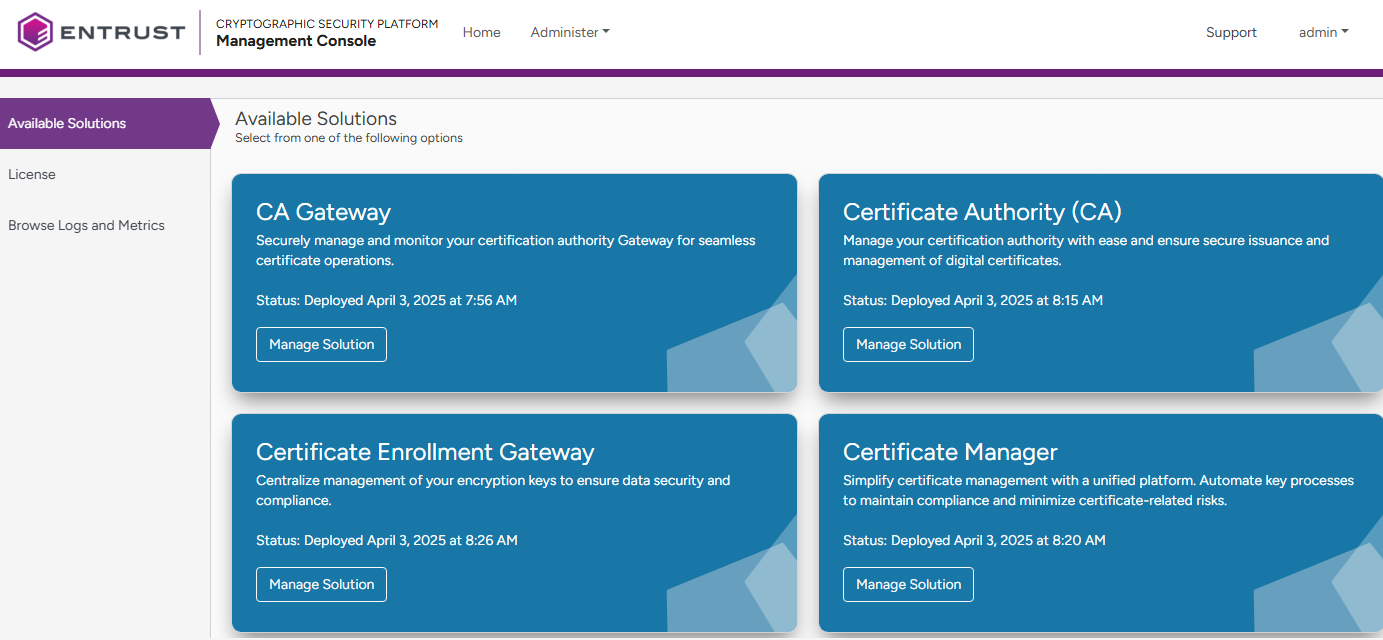
- In the content pane, click Manage Solution under Certificate Authority (CA).
- Select Operations in the sidebar.
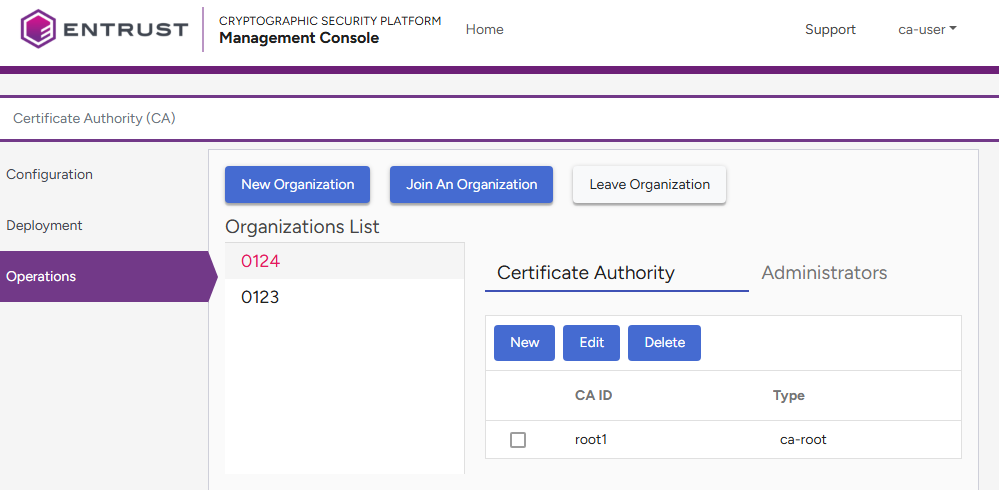
- Select an organization under Organizations list.
See Managing organizations for how to create or join an organization.
- Click New under Certificate Authority.
- Configure the following settings.
- Click Submit to create the new Certificate Authority.
- Copy the password of the client authentication PKCS #12 created for each new auditor or administrator (if any).
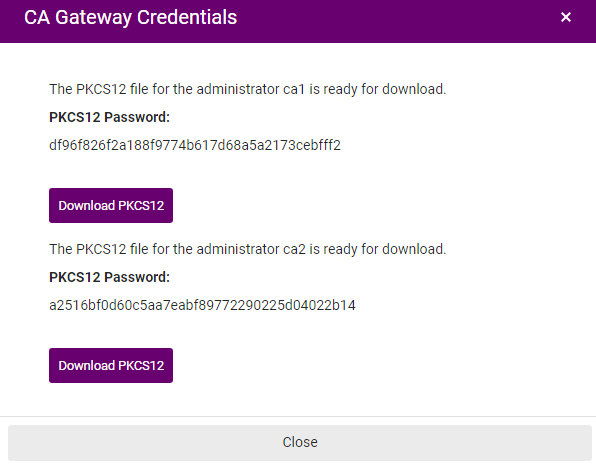
- Click Download to download the PKCS #12 files. Each PKCS #12 includes:
- The certificate of the CA that issues the client certificates.
- A client certificate.
- The private key of the client certificate.
- Save the PKCS #12 files and passwords in a secure place, as you cannot obtain them later.
- If the root CA of the new intermediate CA is an external root CA, follow the steps described at Certifying a CA with an external root CA.
CA Type
Click Intermediate Subordinate Authority.
Mandatory: Yes.
CA Identifier
Type a unique identifier for the new Certificate Authority within its organization. This identifier:
- Must be 3-18 characters long.
- Can only include lowercase letters, numbers, underscores ("_"), and hyphens ("-").
Do not reuse the identifier of a Certificate Authority for up to 24 hours after it has been deleted.
Mandatory: Yes.
Signing Key Type
Select a combination of cryptosystem and hash algorithm for the new CA to sign certificates.
- The available algorithms on this list depend on the configured cryptographic module.
- For a testing environment with software cryptography, the list also includes the algorithms described in Post-quantum key types.
NIST will deprecate some algorithms after Dec 31, 2030. See https://nvlpubs.nist.gov/nistpubs/ir/2024/NIST.IR.8547.ipd.pdf
Label | Key algorithm | Signature algorithm | VA key type | VA signature algorithm |
|---|---|---|---|---|
RSA-2048+PKCS15-SHA256 | RSA2048 | sha256WithRSAEncryption | RSA2048 | sha256WithRSAEncryption |
RSA-2048+PSS-SHA256 | RSA2048 | sha256WithRSAPSS | RSA2048 | sha256WithRSAPSS |
RSA-3072+PKCS15-SHA256 | RSA3072 | sha256WithRSAEncryption | RSA2048 | sha256WithRSAEncryption |
RSA-3072+PSS-SHA256 | RSA3072 | sha256WithRSAPSS | RSA2048 | sha256WithRSAPSS |
RSA-4096+PKCS15-SHA512 | RSA4096 | sha512WithRSAEncryption | RSA2048 | sha256WithRSAEncryption |
RSA-4096+PSS-SHA512 | RSA4096 | sha512WithRSAPSS | RSA2048 | sha256WithRSAPSS |
ECDSAP256+SHA256 | ECDSAP256 | ecdsa-with-SHA256 | RSA2048 | sha256WithRSAEncryption |
ECDSAP384+SHA384 | ECDSAP384 | ecdsa-with-SHA384 | RSA2048 | sha256WithRSAEncryption |
ECDSAP521+SHA512 | ECDSAP521 | ecdsa-with-SHA512 | RSA2048 | sha256WithRSAEncryption |
ML-DSA-44 | ML-DSA-44 | ML-DSA-44 | RSA2048 | sha256WithRSAEncryption |
ML-DSA-65 | ML-DSA-65 | ML-DSA-65 | RSA2048 | sha256WithRSAEncryption |
ML-DSA-87 | ML-DSA-87 | ML-DSA-87 | RSA2048 | sha256WithRSAEncryption |
Hash-SLH-DSA-SHA2-128s-With-SHA256 | Hash-SLH-DSA-SHA2-128s-With-SHA256 | Hash-SLH-DSA-SHA2-128s-With-SHA256 | RSA2048 | sha256WithRSAEncryption |
Hash-SLH-DSA-SHA2-128f-With-SHA256 | Hash-SLH-DSA-SHA2-128f-With-SHA256 | Hash-SLH-DSA-SHA2-128f-With-SHA256 | RSA2048 | sha256WithRSAEncryption |
Hash-SLH-DSA-SHA2-192s-With-SHA512 | Hash-SLH-DSA-SHA2-192s-With-SHA512 | Hash-SLH-DSA-SHA2-192s-With-SHA512 | RSA2048 | sha256WithRSAEncryption |
Hash-SLH-DSA-SHA2-192f-With-SHA512 | Hash-SLH-DSA-SHA2-192f-With-SHA512 | Hash-SLH-DSA-SHA2-192f-With-SHA512 | RSA2048 | sha256WithRSAEncryption |
Hash-SLH-DSA-SHA2-256s-With-SHA512 | Hash-SLH-DSA-SHA2-256s-With-SHA512 | Hash-SLH-DSA-SHA2-256s-With-SHA512 | RSA2048 | sha256WithRSAEncryption |
Hash-SLH-DSA-SHA2-256f-With-SHA512 | Hash-SLH-DSA-SHA2-256f-With-SHA512 | Hash-SLH-DSA-SHA2-256f-With-SHA512 | RSA2048 | sha256WithRSAEncryption |
Hash-SLH-DSA-SHAKE-128s-With-SHAKE128 | Hash-SLH-DSA-SHAKE-128s-With-SHAKE128 | Hash-SLH-DSA-SHAKE-128s-With-SHAKE128 | RSA2048 | sha256WithRSAEncryption |
Hash-SLH-DSA-SHAKE-128f-With-SHAKE128 | Hash-SLH-DSA-SHAKE-128f-With-SHAKE128 | Hash-SLH-DSA-SHAKE-128f-With-SHAKE128 | RSA2048 | sha256WithRSAEncryption |
Hash-SLH-DSA-SHAKE-192s-With-SHAKE256 | Hash-SLH-DSA-SHAKE-192s-With-SHAKE256 | Hash-SLH-DSA-SHAKE-192s-With-SHAKE256 | RSA2048 | sha256WithRSAEncryption |
Hash-SLH-DSA-SHAKE-192f-With-SHAKE256 | Hash-SLH-DSA-SHAKE-192f-With-SHAKE256 | Hash-SLH-DSA-SHAKE-192f-With-SHAKE256 | RSA2048 | sha256WithRSAEncryption |
Hash-SLH-DSA-SHAKE-256s-With-SHAKE256 | Hash-SLH-DSA-SHAKE-256s-With-SHAKE256 | Hash-SLH-DSA-SHAKE-256s-With-SHAKE256 | RSA2048 | sha256WithRSAEncryption |
Hash-SLH-DSA-SHAKE-256f-With-SHAKE256 | Hash-SLH-DSA-SHAKE-256f-With-SHAKE256 | Hash-SLH-DSA-SHAKE-256f-With-SHAKE256 | RSA2048 | sha256WithRSAEncryption |
SPHINCS+-SHA2-128f-simple | SPHINCS+-SHA2-128f-simple | SPHINCS+-SHA2-128f-simple | RSA2048 | sha256WithRSAEncryption |
SPHINCS+-SHA2-128s-simple | SPHINCS+-SHA2-128s-simple | SPHINCS+-SHA2-128s-simple | RSA2048 | sha256WithRSAEncryption |
SPHINCS+-SHA2-192f-simple | SPHINCS+-SHA2-192f-simple | SPHINCS+-SHA2-192f-simple | RSA2048 | sha256WithRSAEncryption |
SPHINCS+-SHA2-192s-simple | SPHINCS+-SHA2-192s-simple | SPHINCS+-SHA2-192s-simple | RSA2048 | sha256WithRSAEncryption |
SPHINCS+-SHA2-256f-simple | SPHINCS+-SHA2-256f-simple | SPHINCS+-SHA2-256f-simple | RSA2048 | sha256WithRSAEncryption |
SPHINCS+-SHA2-256s-simple | SPHINCS+-SHA2-256s-simple | SPHINCS+-SHA2-256s-simple | RSA2048 | sha256WithRSAEncryption |
Falcon-512 | Falcon-512 | Falcon-512 | RSA2048 | sha256WithRSAEncryption |
Falcon-1024 | Falcon-1024 | Falcon-1024 | RSA2048 | sha256WithRSAEncryption |
Mandatory: Yes.
Certificate Profiles
The profiles the Certificate Authority will support for issuing certificates. After selecting a profile group in the Certificate Profiles field, click the plus sign (“+”) to view, select, and unselect the profiles in that group.
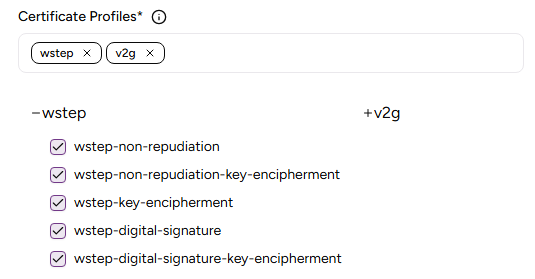
See a complete reference of these profiles at the Entrust PKIaaS online guide.
Profiles | URL |
|---|---|
Profiles for issuing authority certificates | |
Profiles for issuing subscriber certificates |
Mandatory: Select at least one profile.
Parent CA Identifier
The identifier of the parent Certificate Authority.
The intermediate authority certificate profile must be enabled in the selected parent authority.
Mandatory: Yes.
Expiration Date
The expiration date for the certificate signing certificate of the Certificate Authority.
Mandatory: No. This value defaults to the following dates.
CA Type | Default expiration date |
|---|---|
Root Certificate Authority | 20 years after the certificate is issued |
Intermediate Certificate Authority | 10 years after the certificate is issued |
Issuing Certificate Authority | 10 years after the certificate is issued |
Attributes
The value of each attribute in the Distinguished Name (DN) of the Certificate Authority certificate.
Mandatory: Set at least the CN attribute of the Distinguished Name.
Auditors
Enter the names of the users who will have auditor permission on the Certificate Authority. For each name, you can:
- Enter a user name already assigned to another CA so that the user will have permissions on different CAs.
- Enter a new user.
Upon CA creation, the Management Console only displays download buttons for the client authentication PKCS #12 of the new users.
Mandatory: No. When omitting this value, the Certificate Authority will not have users with only auditing permission.
Use the trash icon to remove Auditor fields you do not want to fill out. Otherwise, they will display a Please fill out this field warning when you click Save.
Administrators
Enter the names of the users who will have administration permission on the Certificate Authority. For each name, you can:
- Enter a user name already assigned to another CA so that the user will have permissions on different CAs.
- Enter a new user.
Upon CA creation, the Management Console only displays download buttons for the client authentication PKCS #12 of the new users.
Mandatory: Yes. Add the name of at least one administrator.