Follow the steps below to install the Cryptographic Security Platform ISO image as a VMware vSphere virtual machine.
To create a Cryptographic Security Platform virtual machine on VMware vSphere
- Log into your VMware vSphere portal.
- Right-click on a node of the virtual machine navigation tree.
- Select the New Virtual Machine command to display the machine creation wizard.
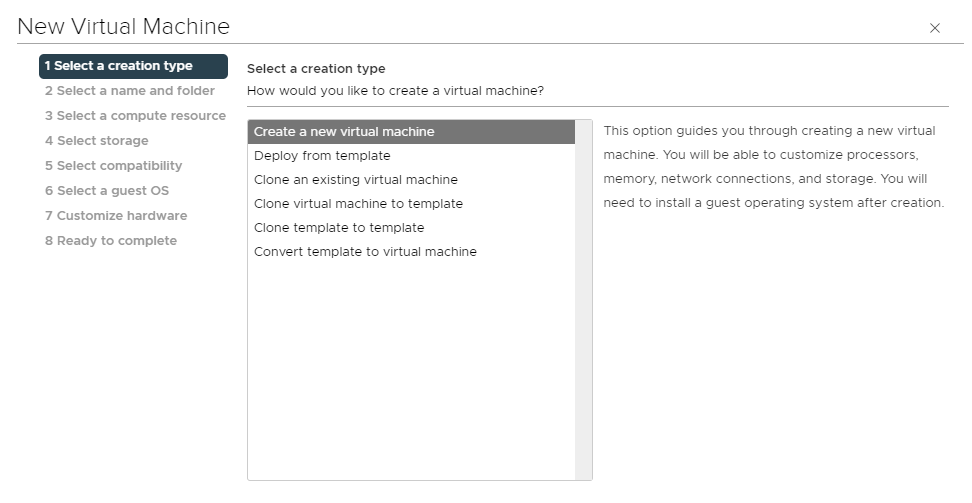
- In each step of this wizard, select the values described below.
Select a creation type
Configure the following settings.
Field | Value |
|---|---|
Select a creation type | Select Create a new virtual machine. |
Select a name and folder
Configure the following settings.
Field | Value |
|---|---|
Virtual machine name | Write a name for the new virtual machine. |
Location for the virtual machine | Select a folder for the new virtual machine. |
Select a compute resource
Configure the following settings.
Field | Value |
|---|---|
Select a compute resource | Select a computing resource for the new virtual machine. |
Select storage
Configure the following settings.
Field | Value |
|---|---|
Encrypt this virtual machine | Do not enable this option |
Storage list | Select a storage resource for the new virtual machine. |
Select compatibility
Configure the following settings.
Field | Value |
|---|---|
Compatible with | Select ESXi 6.7 and later. |
Select a guest OS
Configure the following settings.
Field | Value |
|---|---|
Guest OS Family | Select Linux. |
Guest OS Version | Select Oracle Linux 8 (64-bit). |
Customize hardware / Virtual Hardware
In the Virtual Hardware tab of the Customize hardware page, configure the main and the additional disks.
To configure the disks
- In CPU, select the number of cores recommended in Machine requirements.
- In Memory, select the RAM size recommended in Machine requirements.
- In New Hard disk:
- Select at least 1 TiB for the main disk, as explained in Machine requirements.
- Set Virtual Device Node to New SCSI controller.
- In New SCSI controller, set Change Type to VMware Paravirtual.
- In New CD/DVD Drive:
- Select the location of the ISO file.
- Check the Connect At Power On box.
- Click ADD NEW DEVICE and select Hard disk to add the additional disk.
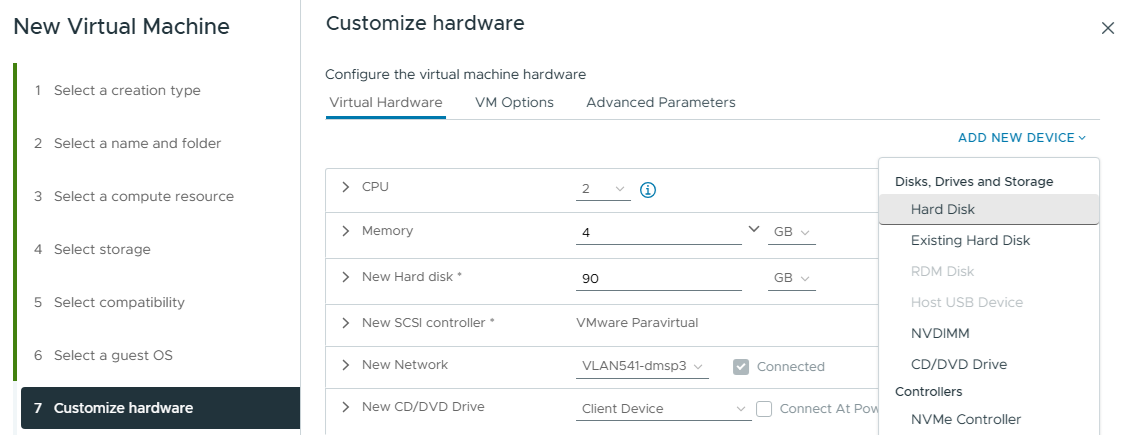
- In New Hard disk 2:
- Assign at least 15 GiB for the additional disk, as recommended in Machine requirements.
- Set Disk Provisioning to Thick Provision Eager Zeroed.
- Set Virtual Device Node to New SCSI controller.
Customize hardware / VM Options
Configure the following settings in the VM Options tab of the Customize hardware page.
See the next section Configuring the boot mode on VMware vSphere for how to configure the selected boot mode.
Field | Value | Description |
|---|---|---|
Boot Options > Firmware | BIOS | Boot the machine with BIOS firmware. |
EFI | Boot the machine with UEFI firmware. |