See below for configuring and deploying CA Gateway with the Management Console.
To configure and deploy CA Gateway with the Management Console
Open the following URL in a Web browser.
https://<machine>:8443/management-consoleWhere
<machine>is the IP address or domain name of the machine hosting PKI Hub.This release changes the URL port to 8443. Update your bookmarks accordingly.
- Log in to the Management Console as a user belonging to a role with CA Gateway management permissions – for example, the initial
adminadministrator user.See Managing identities for how to manage users and roles.
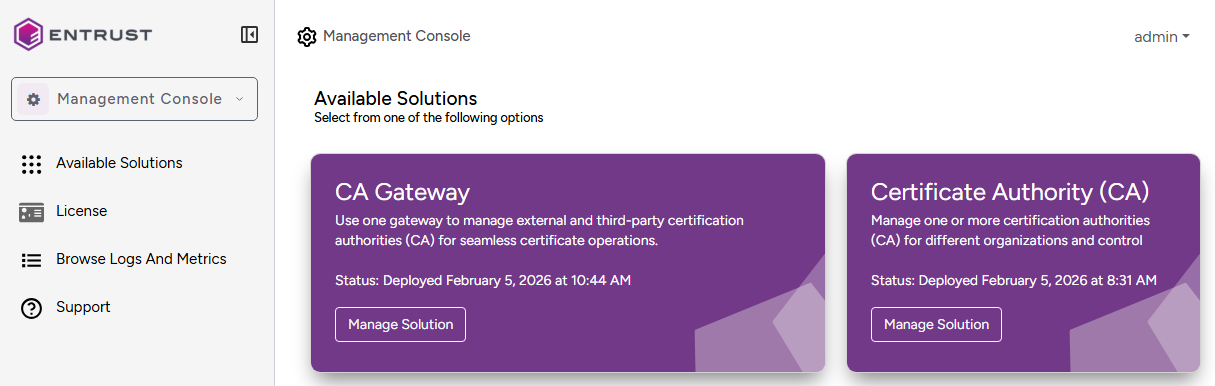
- In the content pane, click Manage Solution under CA Gateway.
Toggle Import Configuration if you want to import a configuration file previously generated with the Export Configuration option.
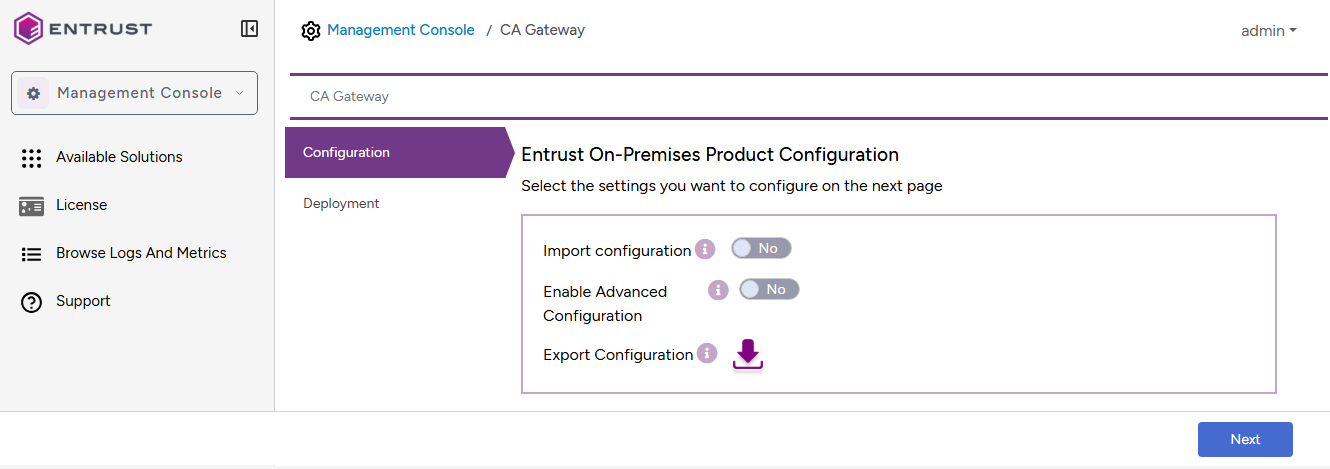
- Toggle Enable Advanced Configuration if you want to configure the full set of configuration parameters supported by the solution.
- Click Next.
- Configure the solution settings described in the following sections.
- Click Validate to validate the configured settings.
- Correct any detected configuration error until the Validate option displays no warnings.
- Optionally, click the Download button to export the current configuration. You can later import this configuration using the already mentioned Import configuration toggle switch.
- Click Submit and wait while PKI Hub uploads the configuration and any attached file, such as a P12 file with authentication credentials.
- Click Deploy.